
Backups
The h8lio subscription includes two backup solutions.
Hot Backups
Section titled “Hot Backups”The hot backups are managed by the Kubernetes Volume Snapshots.
The Volume Snapshots are created by the CSI Snapshotter within the Ceph Cluster (managed by Rook) which also manages your Persistent Volume Claims.
To provision a Persistent Volume Claim from a Volume Snapshot you have to configure its Restore Volume datasource.
🟢 Pros:
- the Volume Snapshot creation and restoration is almost instantaneous
- the size used by the Volume Snapshot is included in your subscription (no extra fee)
- is able to clone a Persistent Volume Claim (its persistent size is charged)
🔴 Cons:
- the data of the Volume Snapshot stays in the Ceph Cluster in the same zone as the original data (see Cold Backups)
- the Volume Snapshot can not be restored in a different cluster
The snapshots are limited to 10 per cluster
You can also directly clone a Persistent Volume Claim using your dashboard or the CSI Volume Cloning manifest
Use Cases
Section titled “Use Cases”- Before an application upgrade, you can create Volume Snapshots of the Persistent Volume Claims used by this application to be able to quickly restore them in case of trouble
- Keep a history of data change
- Clone Persistent Volume Claims to be used by another application pod environment, example: create a test database as identical as the production one.
Manage the Hot Backups
Section titled “Manage the Hot Backups”Using the dashboard
Section titled “Using the dashboard”- Open the Cloud section of your dashboard.
- Open the Storage panel of the cluster whose Persistent Volume Claims you want to snapshot (click its volumes count).
- The Volumes tab lists the cluster’s Persistent Volume Claims. Use a volume’s row actions to create a snapshot.
- Open the Snapshots tab to see the newly created snapshot.
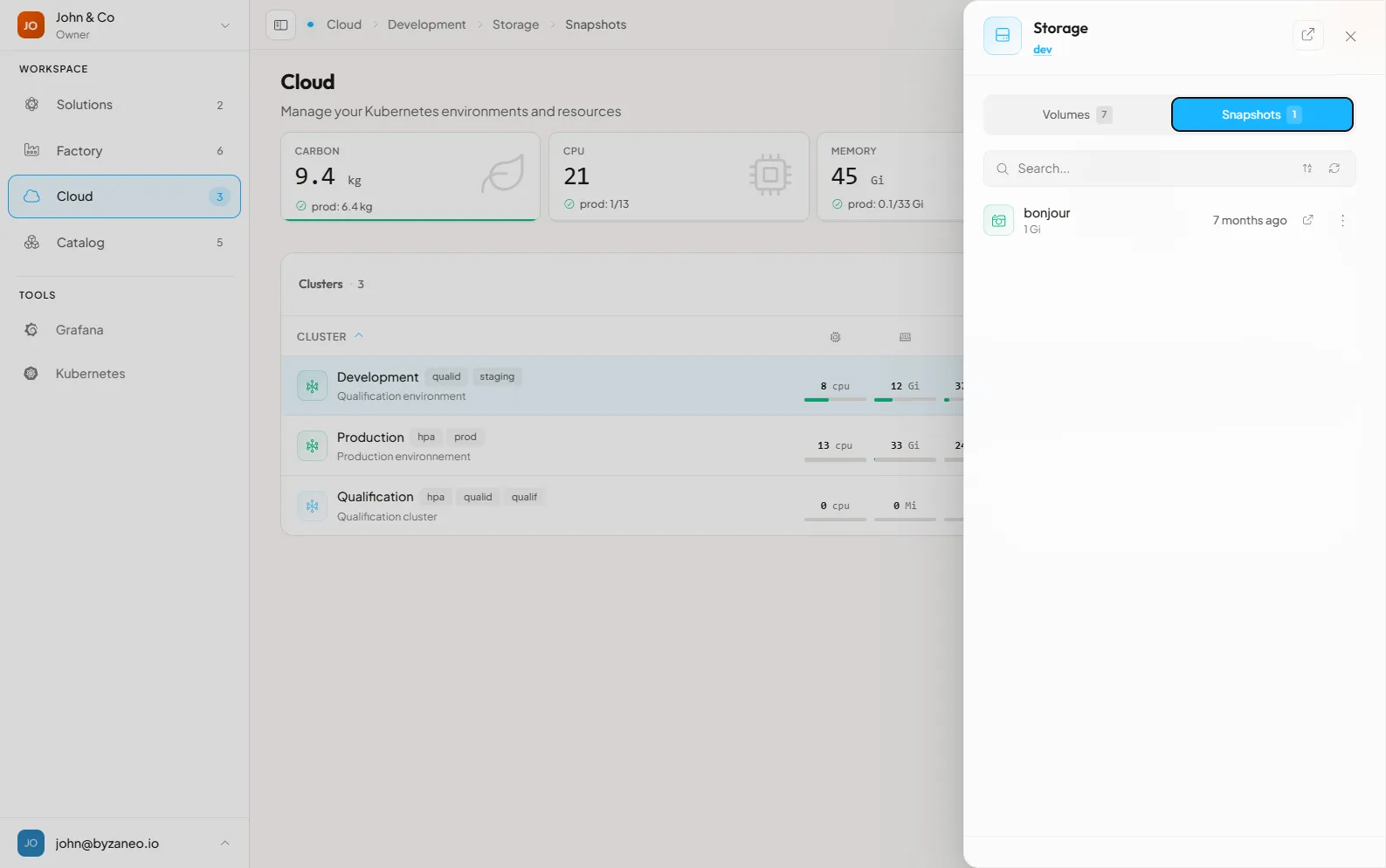 6. To restore the snapshot, open the actions menu at the end of its line then click “Restore”. The name of the volume to restore must not already exist.
Using the command line
Section titled “Using the command line”Manifest to create a Volume Snapshot:
Section titled “Manifest to create a Volume Snapshot:”apiVersion: snapshot.storage.k8s.io/v1kind: VolumeSnapshotmetadata: name: [nameOfTheSnapshot] namespace: [namespaceOfThePersistentVolumeClaim]spec: source: persistentVolumeClaimName: [nameOfThePersistentVolumeClaimToSnapshot] volumeSnapshotClassName: [block-snapshot|files-snapshot]volumeSnapshotClassNamedepends on the storage class of the Persistent Volume Claim:*-block-*storage classes should use theblock-snapshot*-files-*storage classes should use thefiles-snapshot
Manifest to provision a Persistent Volume Claim from a Volume Snapshot
Section titled “Manifest to provision a Persistent Volume Claim from a Volume Snapshot”apiVersion: v1kind: PersistentVolumeClaimmetadata: name: restore-pvcspec: storageClassName: [sameStorageClassAsTheSnapshottedVolume] dataSource: name: [nameOfTheVolumeSnapshot] kind: VolumeSnapshot apiGroup: snapshot.storage.k8s.io accessModes: - [sameAccessModeAsTheSnapshottedVolume] resources: requests: storage: [sameSizeAsTheSnapshottedVolume]Cold Backups
Section titled “Cold Backups”The Cold Backup is the safest way to backup and restore your clusters. It’s based on Velero and Restic.
🟢 Pros:
- allows you to backup and restore an entire cluster: the Kubernetes manifests and the mounted Persistent Volume Claims data. Some restrictions apply:
- velero is configured to be non-destructive during a restore (it does not overwrite existing resources)
- resource restoration in a different cluster can lead to some conflicts, example: ingress routes with the same rules (you can use resource exclusion/inclusion during the backup/restore process to avoid this issue)
- the backups are stored in a different data center in the same geographical location (outside of the Kubernetes and Ceph Cluster)
- the cold backups are included in your subscription (no extra cost)
🔴 Cons:
- as the backups are stored outside of the cluster, the backup time could be increased by the size of the data to transport over the network
- some applications could use file locks and make the backup not possible for these files
- the backup pod’s mounted volumes are compressed and sent to the backup location by Restic: some large volumes could not be relevant to the cold backup system
The native backup system of your applications could be a good (or even the only) alternative to the Cold Backup limitations and performances, example: S3 Mirroring, Database Replication…
Use Cases
Section titled “Use Cases”- Safely backup your clusters and their applications data outside of the Kubernetes Cluster
- Clone all or part of a cluster
- Download the backup’s resources to be used in a different Kubernetes environment
Manage the Cold Backups
Section titled “Manage the Cold Backups”- Open the Cloud section of your dashboard.
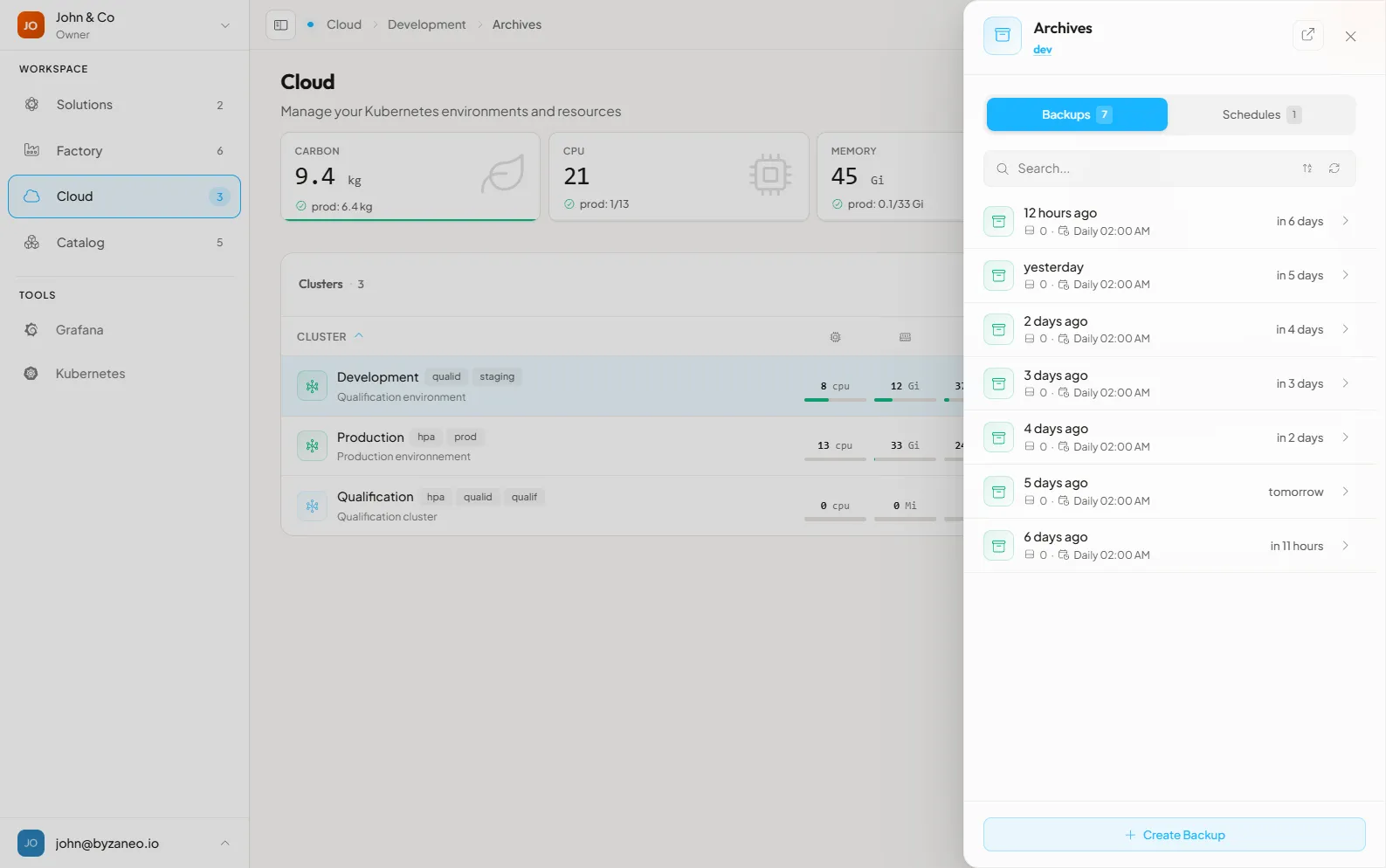
- Open the Archives panel of the cluster you want to back up (click its backups count).
- The Backups tab lists the cluster’s existing backups; the Schedules tab lists the recurring backup schedules.
Instant Backup
Section titled “Instant Backup”In the Backups view, click the plus button to create an instant backup, then fill in the form:
Retention: the number of days you want to keep this backupLabels: filter this backup by using the Kubernetes resources labelsExcluded/Included resources: Kubernetes resources definition to exclude/include in this backup- The volumes included in this backup, click on the size to get the details (see Backup Volume Selection)
Scheduled Backup
Section titled “Scheduled Backup”Open the “Schedules” tab and click the plus button, then fill in the form:
Frequency: how often this scheduled backup has to be fired:Daily,WeeklyorMonthlyHour,Day of the WeekorDay of the month: set the time or date anchor of this schedule (depends on theFrequencyfield value)- The other fields are the same as the Instant Backup
You are limited to 3 scheduled backups per cluster
Backup Volume Selection
Section titled “Backup Volume Selection”By default a Cold Backup doesn’t include the mounted Persistent Volume Claims (PVC) data. To select the volumes data to backup you have to add a Velero annotation to the pods which are mounting the PVC:
annotations: backup.velero.io/backup-volumes: volumeNameA,volumeNameB...⚠️ if your pod is created by another Kubernetes resource (Deployment, StatefulSet…) you have to set the annotation within the pod template
if you provide a volume list to the annotation, pay attention to separate the volumes’ names only by a comma character (without whitespace)
no need to include the
ConfigMap,Secret,EmptyDirmounted volumes in this annotation as they are volatile or will be backed up by Velero as part of the Kubernetes manifests
Example in a Kubernetes Deployment:
kind: DeploymentapiVersion: apps/v1metadata: name: my-service namespace: my-cluster labels: app: my-servicespec: replicas: 1 selector: matchLabels: app: my-service template: metadata: labels: app: my-service annotations: # here is the velero annotation (within the pod template section) backup.velero.io/backup-volumes: my-volume-data spec: volumes: - name: my-volume-data persistentVolumeClaim: claimName: my-volume containers: - name: my-service image: registry.h8l.io/my-domain/my-service:latest volumeMounts: - name: my-volume-data mountPath: /data/ imagePullSecrets: - name: harbor-registry strategy: type: RecreateRestore a Cold Backup
Section titled “Restore a Cold Backup”To restore a Cold Backup, open the actions button at the end of the backup line and configure the restore in the form that appears:
Cluster: the restore target cluster. Before running the restore, ensure the cluster has enough resources allocated (in Standard mode) to run and create the backup resources and its dataLabels: the labels used to filter the resources included in the restored backupExcluded/Included resources: Kubernetes resources definitions to include or exclude during the restore process